
What the widget does
Dedup by Reform fixes what integrations miss: when a form, chat or integration creates a new contact or company for a client who is already in the CRM, the widget merges the duplicate into the existing card within seconds of the lead appearing. It also cleans up duplicates that have already piled up. Merging uses the native Kommo merge: leads, notes, tasks and chats move to the older card.
Installation
- Install the widget from the Kommo marketplace or with the Install in Kommo button at the top of this page and allow access.
- Open Settings → Integrations → Dedup by Reform, choose the fields to find duplicates by and click Save.
- The cleanup page is in Settings → Dedup.
Merging cards in Kommo requires the rights to delete contacts and companies, so run the cleanup as an administrator.
Merging new duplicates as leads arrive
- Turn on Merge new duplicates automatically in the widget settings.
- In the pipeline settings (Leads → Automate) add the Dedup by Reform action to the stage where new leads arrive, with «After moved to or created in this stage».
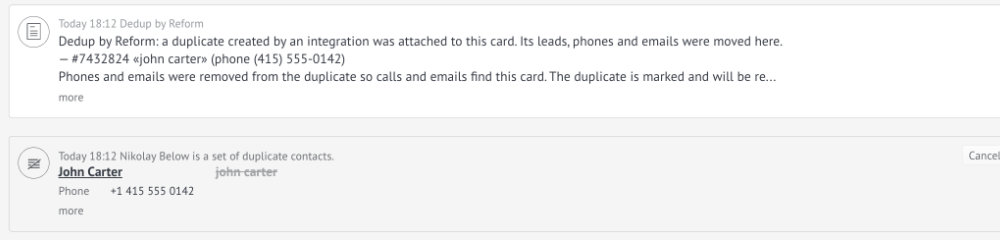
- When a lead arrives, the Reform server checks its contacts and company within about 20 seconds. If the duplicate is clear, the lead, phones and emails move to the older card at once, and the duplicate is emptied so that calls and emails find the right card.
- The empty duplicate is then deleted by the native Kommo merge in the browser of any user with merge rights who has Kommo open. Doubtful cases are only marked for review.
Checking the whole base
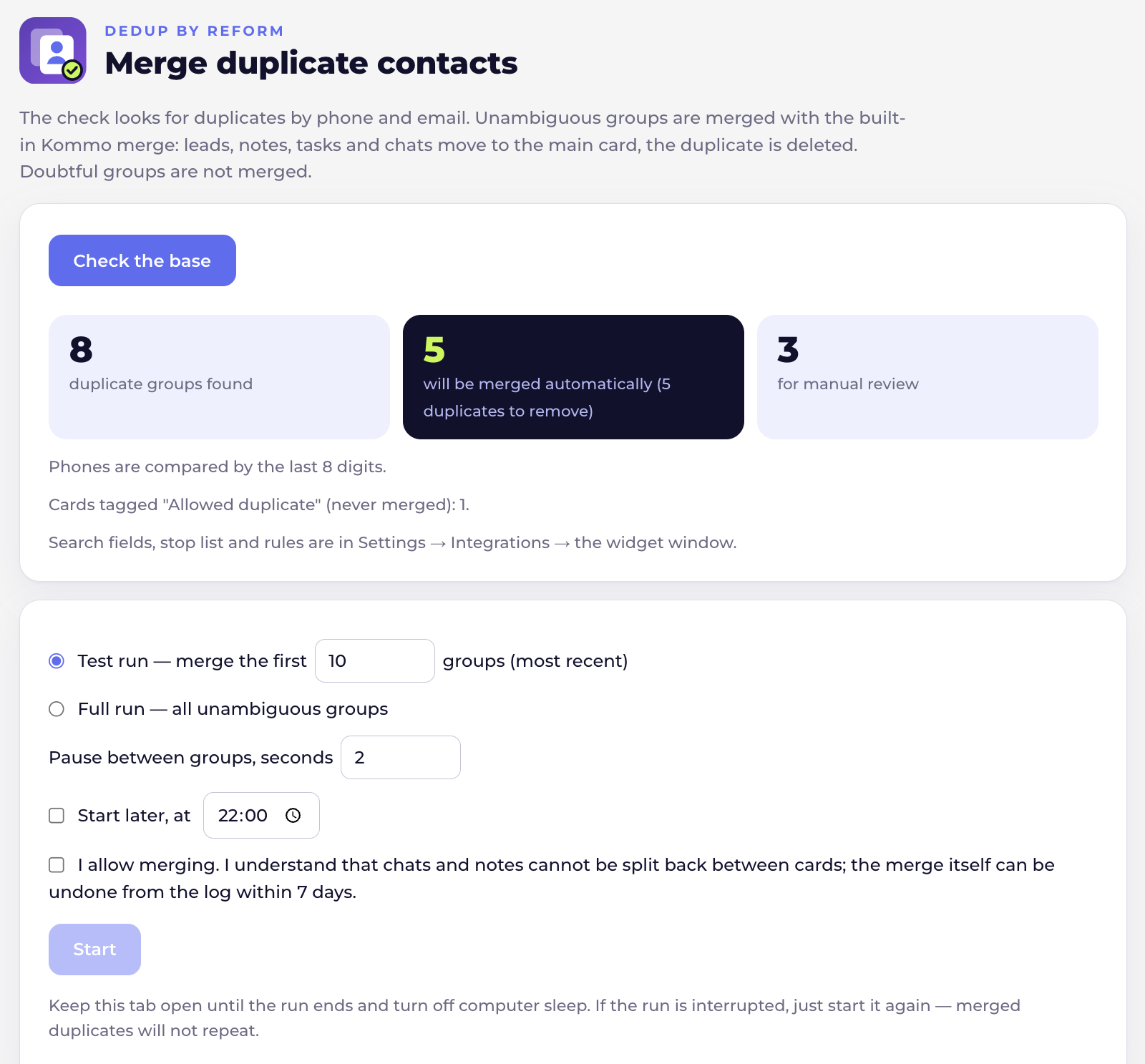
- On the Settings → Dedup page choose Contacts or Companies and click Check the base. The check only reads data and changes nothing.
- The result shows how many groups were found, how many will be merged automatically and how many go to manual review.
- Start with a test run: merge the first 10 groups and look at the cards. Then start the full run, now or at a set time, for example at 22:00.
- Keep the tab open until the run ends. If it was interrupted, just start it again: merged duplicates will not repeat.
After each merge the widget checks that the duplicates disappeared and all leads stayed with the main card. If something is wrong, the run stops.
Manual review
- Groups that are not clear enough are not merged on their own: for example, too many cards with one number, or a contact linked to different companies.
- Click Review doubtful groups: the cards of a group are shown side by side, you choose the main card and which values to keep, then merge, mark as not a duplicate or skip.
- Mark doubtful groups in the CRM puts a mark into the card field «Duplicate (Dedup)», so they can be found with the list search: «Review-duplicate» shows all of them, a group number (G-…) shows one group.
Merge log and undo
- Every merge leaves a note in the main card with what was merged; the Merge log for 7 days is built from these notes.
- Click Undo… next to a merge and confirm. The duplicate comes back from the Kommo trash, its leads and linked contacts or companies return to it, and phones, emails and tags that came from it are removed from the main card.
- After undo both cards are marked «Not-duplicate», so later runs will not merge them again.
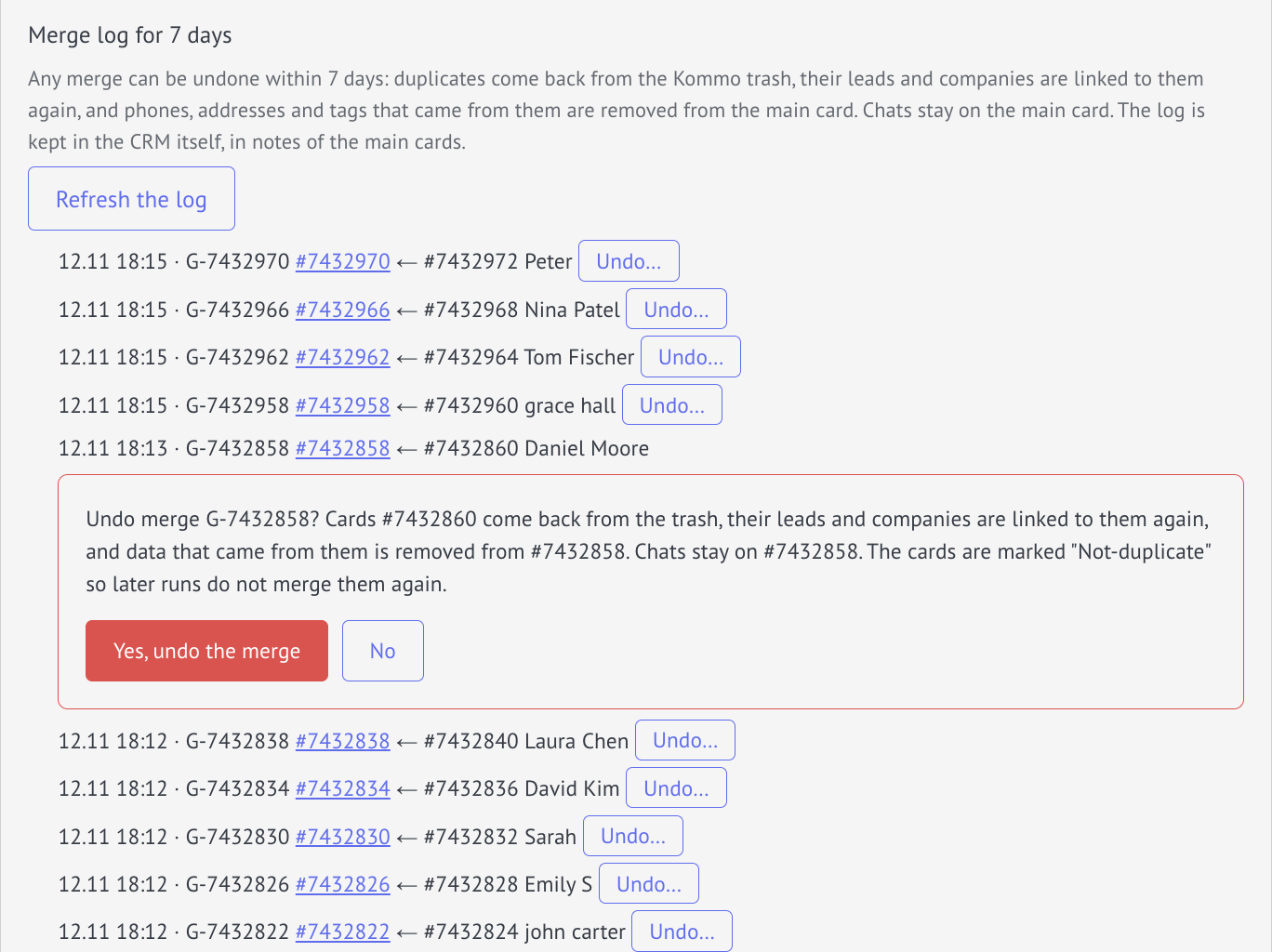
Chats and notes that moved to the main card stay there: Kommo cannot split them back.
Contacts and companies
Switch between Contacts and Companies at the top of the cleanup page. Everything works the same: check, test and full run, manual review, log and undo. For companies, a company field such as a tax ID is usually the best extra field. Contacts are never merged by a company field: all employees of one company share it.
Settings
- Merge new duplicates automatically — the Digital Pipeline action described above.
- Find duplicates by phone, email and up to four of your own fields of contacts or companies (tax ID, contract or customer number).
- Advanced settings: the maximum group size merged on its own (3 by default, up to 5), when a number or email counts as shared, how many last digits of a phone to compare (detected from the base by default), whether any or all fields must match, fields that must match, a stop list, and the name of the «Allowed duplicate» tag.
What is never merged on its own
- Groups larger than the set size (3 cards by default).
- Numbers and emails found on many cards: an office line or a reception address.
- Junk values: «0000000», a course name written into the email field and similar. If too much of the base would be merged, the full run is blocked until you confirm it.
- Cards tagged «Allowed duplicate» (for example, family members with one phone in a clinic).
- Cards a person has already marked as «Not-duplicate».
FAQ
Are leads merged?
No. Only contacts and companies are merged; a lead just becomes linked to the older card.
Does the widget use AI or send data anywhere?
No. Duplicates are found by rules in your browser. For new duplicates from the pipeline, the Reform server reads the cards through the Kommo API and does not store personal data.
A manager without admin rights has Kommo open — will merging work?
Kommo merges cards only for users with the rights to delete them. The widget hands the final step to a user who has these rights.
The check found nothing, but I see duplicates
Check which fields are selected and whether the values match: phones are compared by the last digits, emails without case. A value found on many cards is treated as shared and ignored.
Can I undo a merge after 7 days?
The log keeps 7 days. Later, a deleted card can still be restored from the Kommo trash by hand while it is there.
Support
When contacting us, include your Kommo account address and the group number (G-…) if the question is about a merge. · admin@reform.bz